
Downloaded a Sims 4 build, but can’t find it anywhere in your game?
Don’t worry — this is one of the most common Sims 4 issues, especially for new players downloading tray files for the first time. This guide will show you exactly where and how to find downloaded lots in The Sims 4 and how to fix the most common reasons builds don’t show up.
Where Downloaded Lots Appear
Most downloaded Sims 4 lots appear inside:
Gallery → My Library
NOT directly in the world map.
Once tray files are installed correctly, the build should appear in your personal library.
Step-by-Step: How to Find Your Build
Step 1 — Open the Gallery
Open The Sims 4 and click the Gallery icon in the top-right corner of your screen.
You can also press:
F4 to open the Gallery instantly.
Step 2 — Go to “My Library”
Inside the Gallery, click:
My Library
This is where downloaded tray file builds appear.

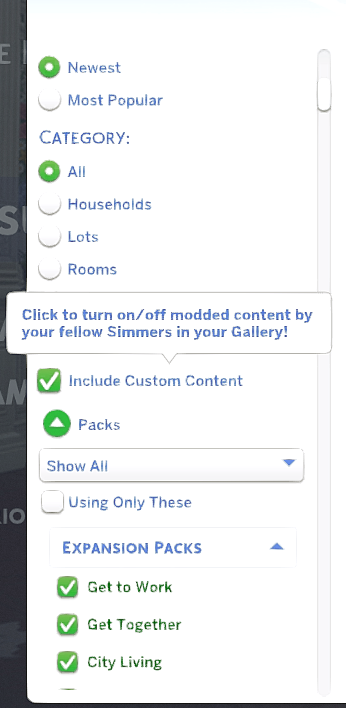
Step 3 — Turn ON “Include Custom Content”
Even if your build is labeled “No CC,” you should still turn ON:
✔ Include Custom Content
Some builds may accidentally use CC-tagged items, or creators may use a custom thumbnail for the build.

Step 4 — Search for the Build
Try sorting by:
- Most Recent
- Search the creator’s name
- Search the build title
Why Your Downloaded Lot Isn’t Showing Up
Problem 1 — Files Were Not Extracted
ZIP files don’t work directly. They must be extracted using a file extractor like Winzip.

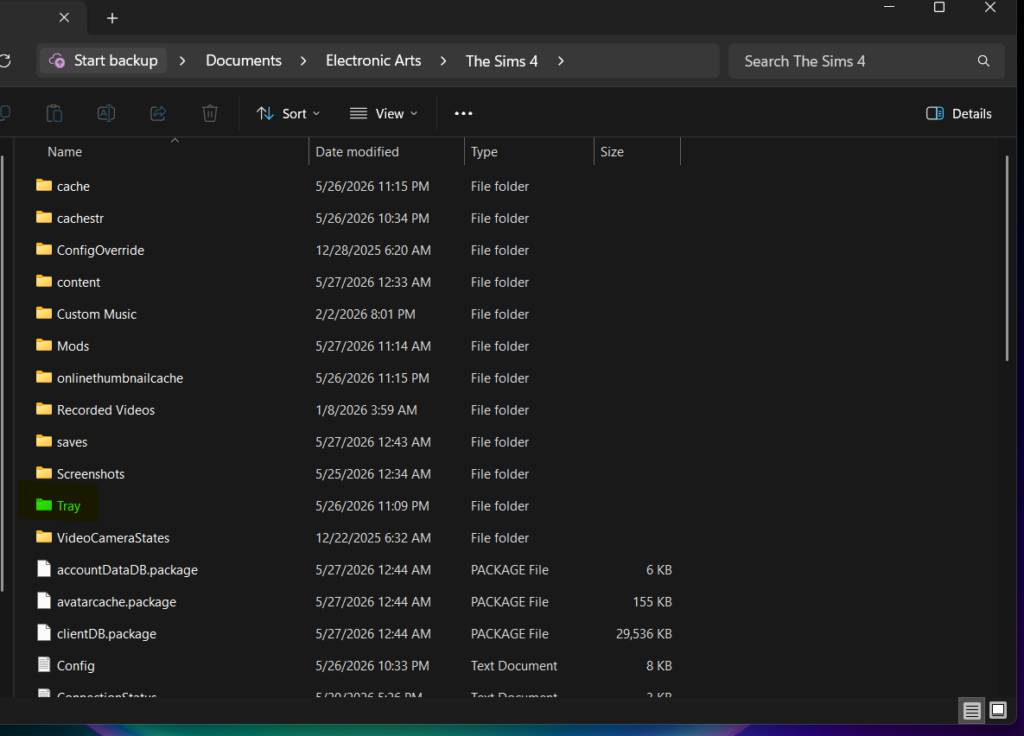
Problem 2 — Files Were Placed in the Wrong Folder
Correct folder:
Documents > Electronic Arts > The Sims 4 > Tray
Problem 3 — Missing Packs
While all builds are no cc, creators use specific pack items to create builds, and those will be required for builds to appear in your game exactly as pictured. Without the required packs, lots still appear but look incomplete.
Problem 4 — CC Filter Is OFF
The “Include Custom Content” tab must always be checked, even for no cc lots. This is where a lot of hidden lots lie. Creators may use custom thumbnails or items marked as CC, so always make sure this filter is on.
How to Place the Lot in Your World
Once you find the build in your Library:
- Select the lot
- Click “Place Lot”
- Choose an empty lot large enough for the build
Example:
A 40×30 build needs a 40×30 lot or larger.
Helpful Related Guides
• How to Download Sims 4 Tray Files
• Best Sims 4 Starter Homes
• Sims 4 Apartments No CC
• Submit a build to be featured.
Looking for more Sims 4 builds?
Browse our curated collection of:
✔ No CC homes
✔ Royal Builds
✔ Starter lots
✔ Luxury builds
✔ Apartments & penthouses